





Maximizing Efficiency and Cost Savings: How Offshore Dedicated Teams Can Revolutionize Your Storage Resources
Launching a new product is always an adventurous experience. You..
Read MoreBlog about storage resources
Blog about storage resources

My name is Louis and I write about data: what services and resources there are for storing data and much more. Also, here you will learn how to save your data and not to lose it.
Learn More
Launching a new product is always an adventurous experience. You..
Read More
As businesses continue to face various challenges, finding and retaining..
Read More
As technology continues to evolve, businesses are realizing the importance..
Read More
Released on January 1, three years ago, the California Consumer..
Read More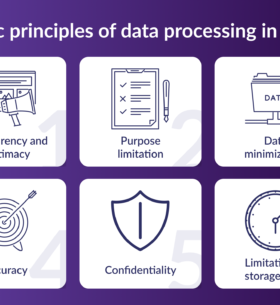
In today's world, personal data protection is given increased attention...
Read More
The amount of data collected by a company is always..
Read More
The number of cybercrimes is growing every day, in particular, the number of hacker attacks that result in leaks of personal data of ordinary users
Read More
One way or another, data has always been handled, even at a time when there was no paper, no parchment, no papyrus
Read More
Backing up your data should be performed regularly and must be done before any manipulations with the system.
Read More
In the age of cloud technology, the importance of data backup has remained the same. We still have to save particularly relevant information
Read More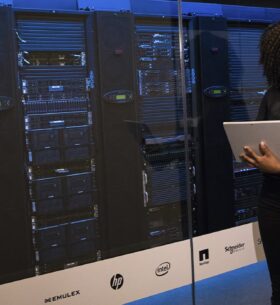
One of the leaders in the global storage market. The company is headquartered in the USA. NetApp manufactures the following types of storage systems
Read More
Object storage is a method of storing data without hierarchy that is commonly used in cloud environments.
Read More
Because object storage supports metadata, you can easily add meta tags to track and index files in different locations.
Read More
File storage is most similar to the way we see information in our computer: that is, as files in subfolders.
Read More
One of the main advantages is that the provider is responsible for their safety. Here are other advantages of this approach.
Read More
If you need to store and process large amounts of data, cloud storage systems (SANs) are a good choice.
Read More
Unlike relational databases with rows and columns, the object-oriented storage architecture stores data units in a structurally flat data environment.
Read More
GetDevDone (former PSD2HTML) is a white-label development agency. We are the trusted web development partner for hundreds of digital agencies all over the world.

Explore the advantages of UWB tracking technology for accurate location tracking in various industries. Unlock its potential for your business today!

HRM Software Development to scale your Human Resources department

Affordable Web Design in Surrey for local businesses. We'll make your business website, landing page or online store for you, fast, modern, not expensive.

In today's competitive legal landscape, staying ahead requires a comprehensive understanding of marketing efforts' effectiveness, and Law Firm Call Tracking empowers firms with precisely that knowledge.
The cost to create an app may seem daunting, but it's a necessary investment for businesses and entrepreneurs looking to stay ahead of the curve in today's digital age.

Netrocket, a B2B SEO agency, provides comprehensive services including keyword research, content optimization, link building, and reputation management.